



A laptop can feel brand new for years if it receives a little routine care. Slow startup times, noisy fans, short battery life, and random crashes are rarely signs that a device is obsolete. Instead, they are warnings that storage is crowded, software is cluttered, cooling is restricted, or updates have been ignored.
A practical maintenance routine protects your files, boosts performance, and delays the expense of replacing your computer. Most experts recommend a quick check every month, deeper physical cleaning every three to six months, and an annual review of storage, security, and battery health.
Keep Storage Under Control
A nearly full drive makes a laptop noticeably slower because your operating system needs free space for temporary files, updates, and virtual memory.
-
Aim for the 15-20% Rule: Keep at least 15 to 20 percent of your main drive free (roughly 75 to 100 GB on a 512 GB drive).
-
Clear the Downloads Folder: Delete duplicate installers, old documents, compressed archives, and large video files.
-
Use Built-In Storage Tools: Features like Storage Sense on Windows or Storage Management on macOS instantly identify large, unused files.
-
Uninstall Unused Software: Remove trial software, old games, and unnecessary manufacturer utilities running in the background.
While cloud storage helps free up space, remember that it is not an automatic backup. If a file is deleted from a synced folder, that deletion spreads to connected devices. Always keep a separate copy of vital records.
Reduce Startup Clutter
Too many applications launching at boot can turn a quick 20-second startup into a frustrating wait.
-
Windows: Open Task Manager and navigate to the Startup Apps section.
-
macOS: Review Login Items within System Settings.
-
Disable Nonessential Items: Prevent game launchers, chat apps, and update helpers from opening automatically.
Disabling an app at startup does not uninstall it—you can still open it whenever needed. Apply the same logic to browser extensions: remove those you no longer use, as each one consumes memory and can slow down page loading.
Update Software and Drivers
Updates fix security weaknesses, improve battery efficiency, solve compatibility issues, and correct system bugs.
-
Enable Automatic Updates: Keep your operating system, web browser, and primary applications updated automatically.
-
Maintain Hardware Drivers: Ensure graphics cards, Wi-Fi adapters, and webcams have the latest official drivers.
-
Avoid Unofficial Sources: Never download drivers from third-party sites. Stick to Windows Update, macOS Software Update, or the laptop manufacturer's official support page.
Clean the Keyboard, Screen, and Vents
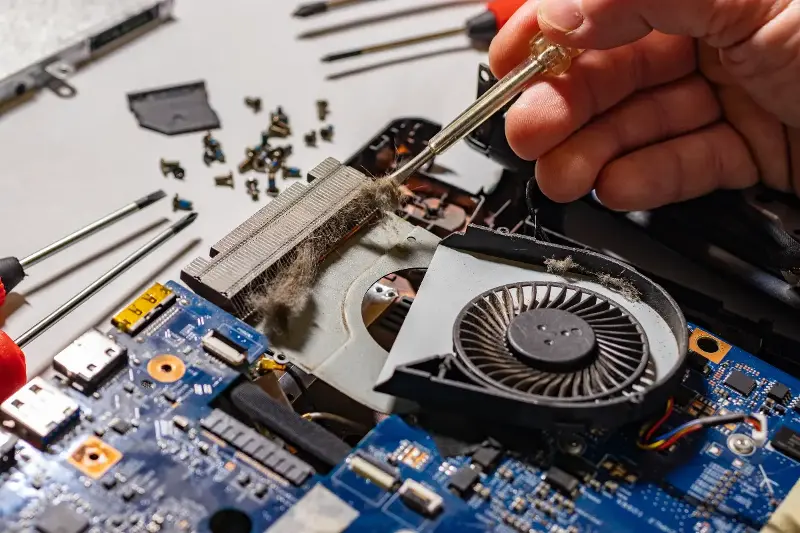
Dust is a primary enemy of laptop performance. As dust accumulates inside vents, heat cannot escape efficiently, leading to thermal throttling—where the processor slows itself down to prevent heat damage.
-
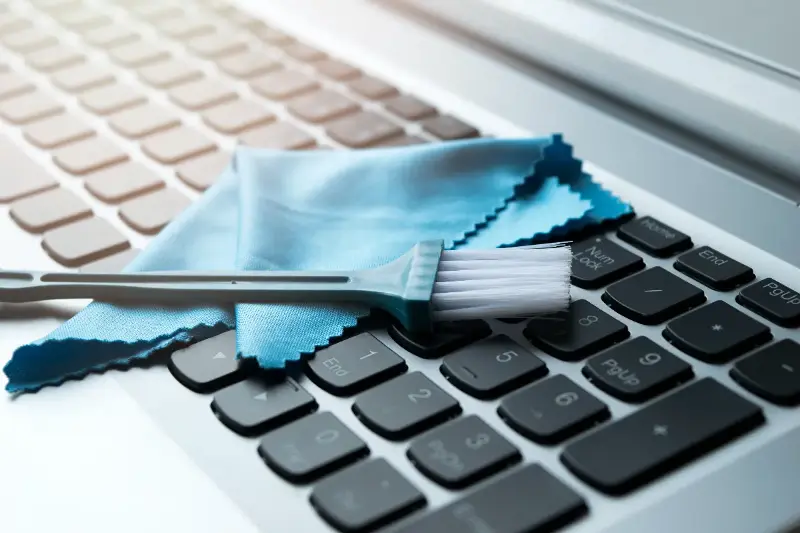
Screen: Shut down the device and wipe gently with a soft microfiber cloth slightly dampened with water or screen-safe cleaner. Never spray liquid directly on the display.
-
Keyboard: Turn the laptop upside down to tap out loose debris, then use compressed air in short, upright bursts around keys.
-
Vents: Use compressed air to clear air passages. Avoid household vacuum cleaners, as static electricity can permanently damage delicate internal components.
Protect Battery Health
Modern lithium-ion batteries gradually lose capacity over time. Heat, deep discharges, and constant high charge levels accelerate degradation.
-
Ensure Airflow: Avoid placing your laptop on blankets or cushions that block cooling vents. Use a hard desk surface or laptop stand.
-
Enable Battery Care Modes: Use built-in manufacturer settings that cap charging at 80 percent when plugged into power continuously.
-
Avoid Frequent Full Discharges: You do not need to drain a modern battery to zero before charging. Charge whenever convenient.
Strengthen Security and Backups
A fast laptop is useless if malware or accidental deletion destroys your files. Protect your system using the simple 3-2-1 backup rule:
-
Keep 3 copies of important data.
-
Store them on 2 different types of storage (e.g., internal drive and external hard drive).
-
Keep 1 copy offsite (e.g., an encrypted cloud service).
Pair your backup plan with strong security practices: use reputable antivirus software, enable two-factor authentication, and use a password manager to maintain unique credentials across all accounts.